Advertisement
AI Landing Page Builder: Create and Publish Landing Pages with MailCannon
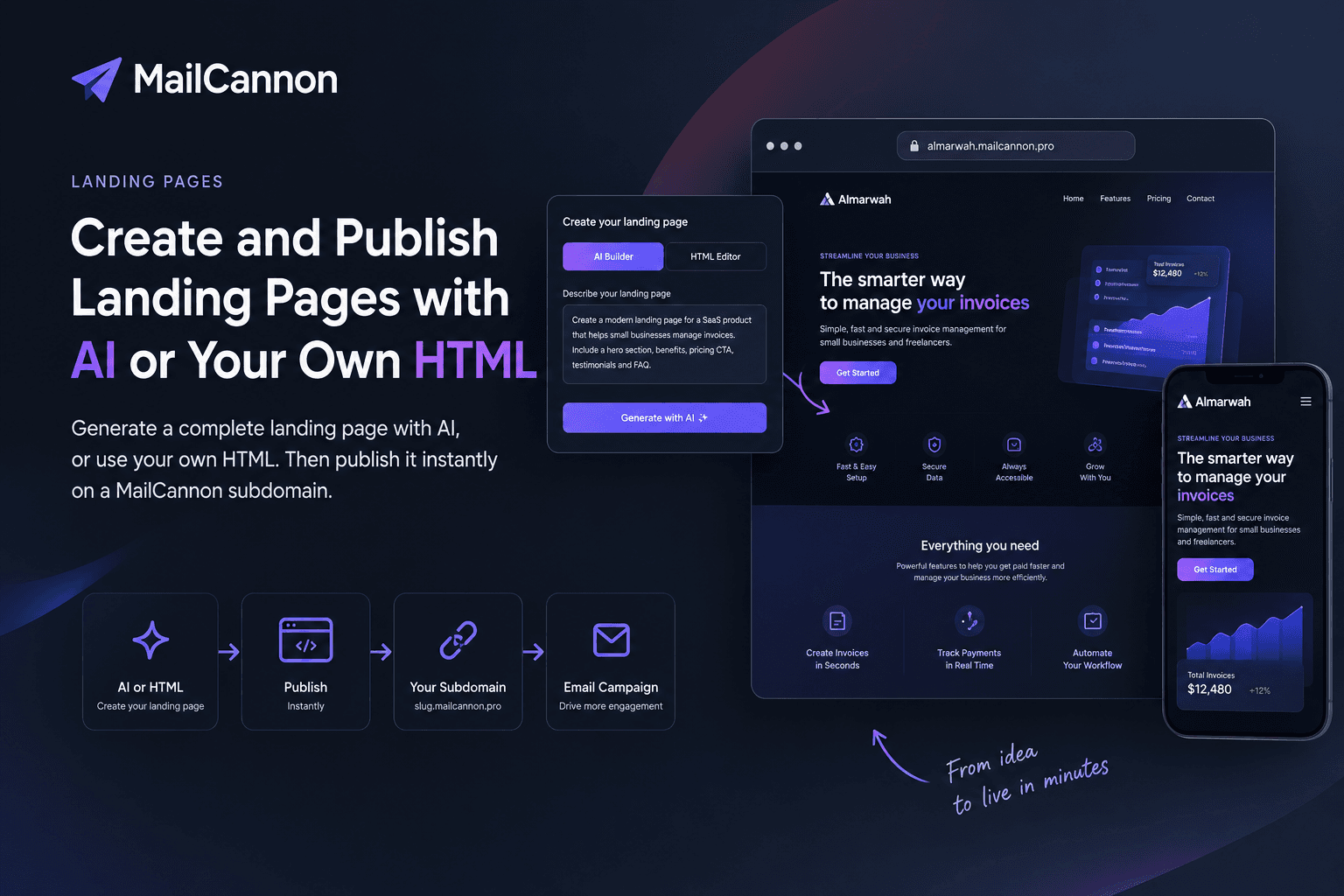
MailCannon Landing Pages lets you create a landing page with AI or your own HTML and publish it instantly on a subdomain. No hosting setup, no domain purchase, no complicated部署.
Key Takeaways
- MailCannon Landing Pages offers two creation methods: AI Builder and HTML Editor.
- Published pages get a subdomain at https://{slug}.mailcannon.pro.
- AI generation uses Gemini to produce complete landing pages from a text description.
- The HTML Editor supports full HTML documents for complete design control.
- Version history lets you preview and restore previous versions of your page.
- Ideal for product launches, email campaigns, lead generation, and more.
A landing page is a standalone web page built for one specific purpose. Unlike a homepage that links to dozens of sections, a landing page focuses on a single goal: get the visitor to take one action. That action could be signing up for a newsletter, downloading a resource, buying a product, or registering for an event.
MailCannon Landing Pages makes creating these focused pages simple. You can either describe what you want to an AI and get a complete page in seconds, or write your own HTML for full control. Either way, your page is published on a MailCannon subdomain with no hosting setup required.
What Are MailCannon Landing Pages?
MailCannon Landing Pages is a feature inside the MailCannon dashboard that lets you create and publish landing pages without touching a hosting provider or configuring DNS records. There are two ways to build a page:
- AI Builder — describe your page in plain language and let Gemini generate a complete landing page.
- HTML Editor — write or paste your own HTML document for full control over every element.
Both methods save your work automatically, keep a version history, and publish your page to a URL like https://your-slug.mailcannon.pro. You can edit, update, or restore previous versions at any time from the dashboard.
Why Landing Pages Matter
Sending traffic to a homepage is like handing someone a phone book when they just need one number. A landing page removes the noise and gives visitors a single path to follow. That focus leads to higher conversion rates because there are no competing links, navigation menus, or unrelated content pulling attention away.
Landing pages also let you match the message. If your email talks about a specific product feature, the landing page should continue that conversation, not drop the visitor on a generic About page. This continuity between message and destination is what makes landing pages effective for marketing campaigns.
For a deeper look at why email campaigns work, see our guide on what is email marketing.
How to Create a Landing Page with AI
The AI Builder uses Gemini to generate a complete landing page from a text description. You do not need to know HTML, CSS, or any web development. The process works like this:
- Go to the creation page — navigate to
/dashboard/landing-pages/newin your MailCannon account. - Select AI Builder — choose the AI option to open the prompt interface.
- Describe your page — write a clear description of what you want. Include the purpose, audience, key sections, and tone.
- Generate the page — click the generate button and let the AI produce the HTML.
- Preview and edit — review the result in the preview panel. Switch to the code editor if you want to make changes.
- Publish — choose a slug and publish. Your page goes live at
https://{slug}.mailcannon.pro.
The AI understands modern web design principles. It produces responsive layouts, clean typography, and structured sections. If the first draft is not quite right, you can refine your prompt and regenerate, or switch to the code editor to make manual adjustments.
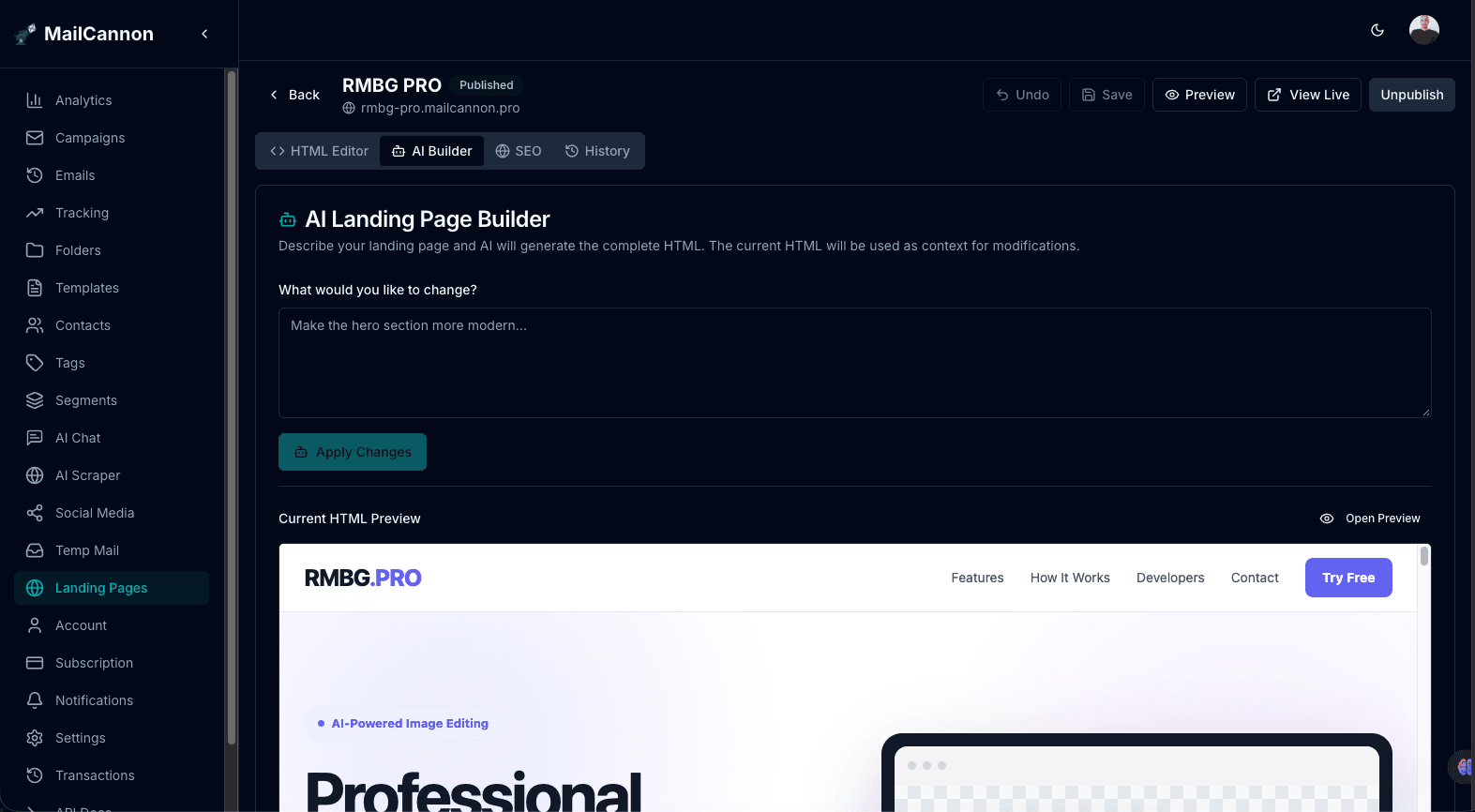
The AI Builder generates a complete landing page from a text description
How to Create a Landing Page with HTML
If you prefer full control, the HTML Editor lets you write or paste a complete HTML document. This is useful when you have a specific design in mind, need to match brand guidelines exactly, or want to use custom frameworks and libraries.
The editor supports standard HTML5 documents with embedded CSS and JavaScript. You can write everything from scratch, paste an existing template, or start with an AI-generated page and modify it in the code editor.
- Go to the creation page — navigate to
/dashboard/landing-pages/new. - Select HTML Editor — choose the HTML option to open the code editor.
- Write your HTML — enter a complete HTML document including
<head>, styles, and body content. - Preview — use the live preview to see how your page renders.
- Publish — choose a slug and publish your page.
The HTML Editor is also where you can fine-tune AI-generated pages. After the AI creates a initial version, you can switch to the code view and adjust any detail, from colors and spacing to the entire layout structure.
Advertisement
Publishing on Your Subdomain
Every landing page you create with MailCannon gets published at a URL like https://your-slug.mailcannon.pro. The slug is a short identifier you choose when creating the page, such as summer-sale or product-launch.
There is no DNS configuration, no SSL certificate setup, and no server management. MailCannon handles hosting, HTTPS, and serving the page. You just pick a slug, and the page is live.
This makes it easy to spin up landing pages for short-term campaigns. Running a weekend promotion? Create a page, share the link, and take it down when the campaign ends. No need to buy a domain or set up hosting for a temporary page.
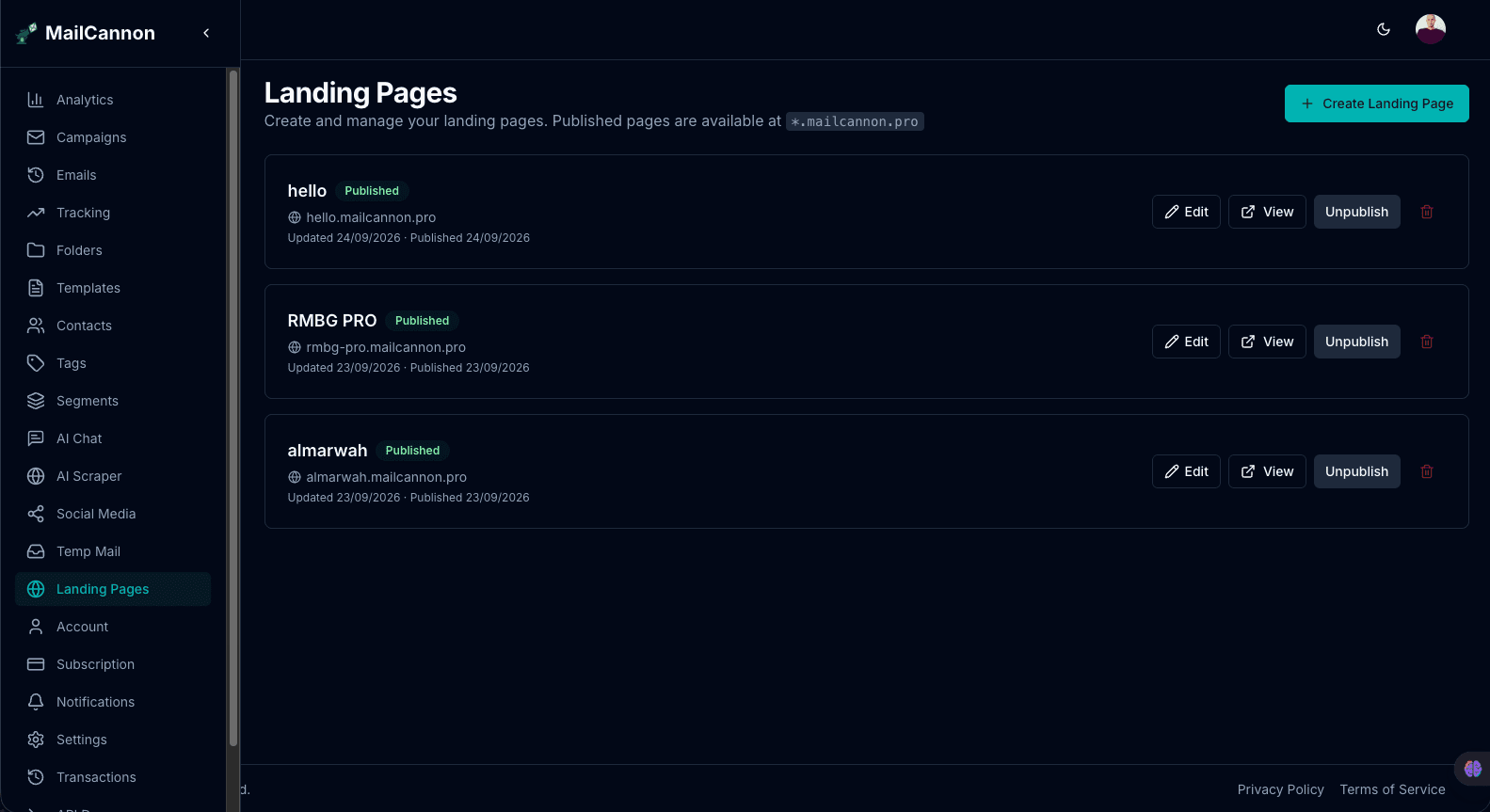
Published landing pages are accessible at your-slug.mailcannon.pro
Use Cases for Landing Pages
Landing pages are versatile. Here are the most common ways businesses use them:
- Product launches — create a focused page for a new product with features, pricing, and a call to action.
- Email campaigns — give your email subscribers a dedicated destination that matches the email message.
- Service descriptions — explain a specific service offering without the clutter of your main website.
- Lead generation — capture contact information with a form and a compelling value proposition.
- Promotions and discounts — highlight a limited-time offer with a clear call to action.
- SaaS onboarding — guide new users through setup or feature adoption with a step-by-step page.
- Events — promote a webinar, conference, or meetup with registration details.
- Portfolio pages — showcase your work or case studies on a standalone page.
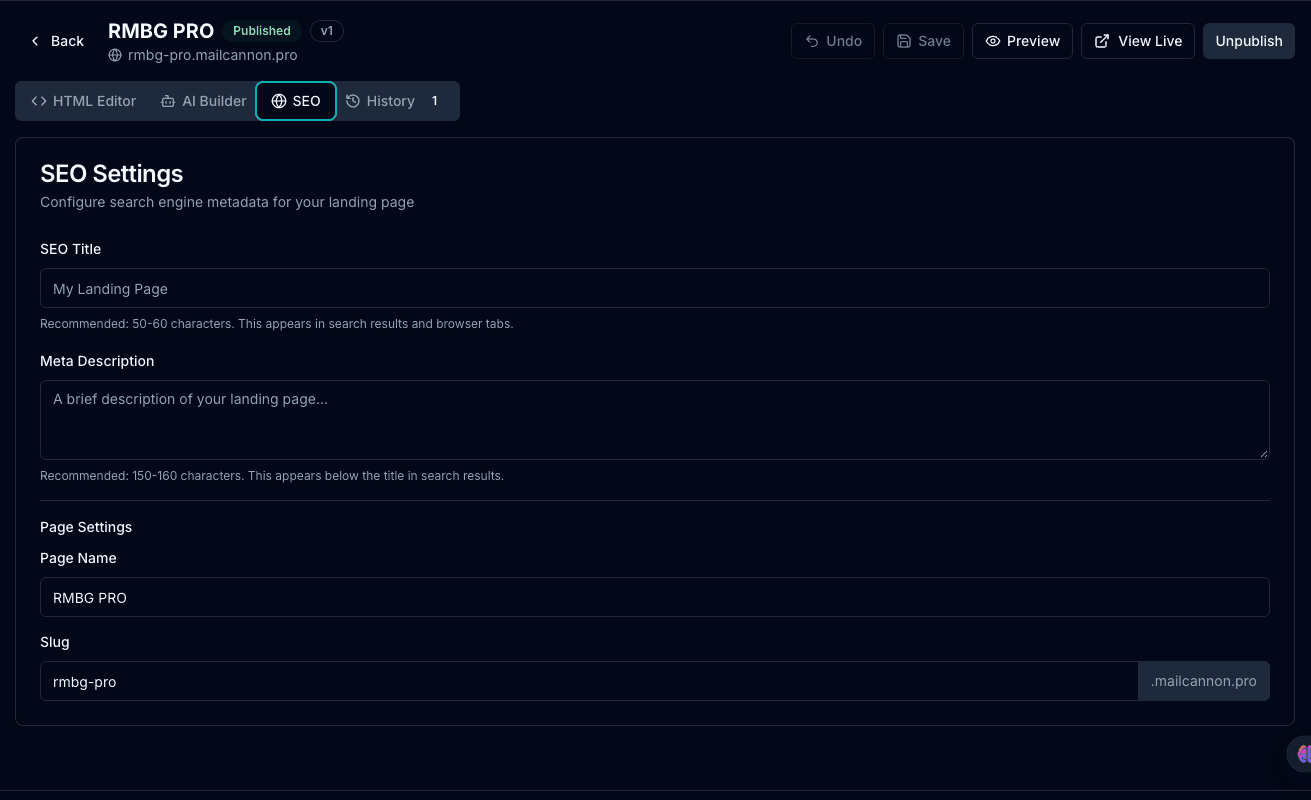
Configure SEO metadata for each landing page before publishing
Landing Pages and Email Marketing
Landing pages and email marketing work together. You write an email that makes a promise or presents an opportunity, and the landing page delivers on that promise. The two channels reinforce each other when the message is consistent.
For example, if your email announces a new feature, the landing page should explain that feature in detail, show screenshots or demos, and provide a clear next step. If your email offers a discount, the landing page should display the offer prominently and make checkout easy.
This relationship between email and landing pages is a core part of effective email marketing. Without a good landing page, even the best email falls short because the visitor lands on a generic page and loses interest.
To improve your campaigns, explore our guide on 10 email marketing strategies that cover how to structure campaigns from email to landing page.
If you are building HTML emails alongside landing pages, our AI HTML email generator can help you create responsive email templates that match your landing page design.
Step-by-Step Tutorial
Here is a complete walkthrough of creating and publishing a landing page with MailCannon:
Step 1: Navigate to the landing pages dashboard
Log in to your MailCannon account and go to /dashboard/landing-pages. This is where all your landing pages live. You can see existing pages, their status, and when they were last updated.
Step 2: Create a new page
Click the button to create a new page. You will be taken to /dashboard/landing-pages/new where you can choose between the AI Builder and the HTML Editor.
Step 3: Build your page
If you chose the AI Builder, describe your landing page in a clear prompt. Be specific about the goal, the audience, and the sections you want. The AI will generate a complete HTML page.
If you chose the HTML Editor, write or paste your HTML document. The editor provides a code view with syntax highlighting and a live preview panel.
Step 4: Preview your page
Use the preview to check how your page looks on different screen sizes. Make sure the layout is responsive, the text is readable, and the call to action is visible.
Step 5: Edit if needed
If something needs to change, you can edit directly in the code editor. Adjust colors, text, images, layout, or any other element. You can also regenerate with AI using a refined prompt.
Step 6: Publish
Choose a slug for your page and click publish. Your page is now live at https://{slug}.mailcannon.pro. Share the link in emails, social media, or ads.
Step 7: Update or restore versions
You can go back to the editor anytime to make changes. MailCannon keeps a version history, so you can preview previous versions and restore them if needed.
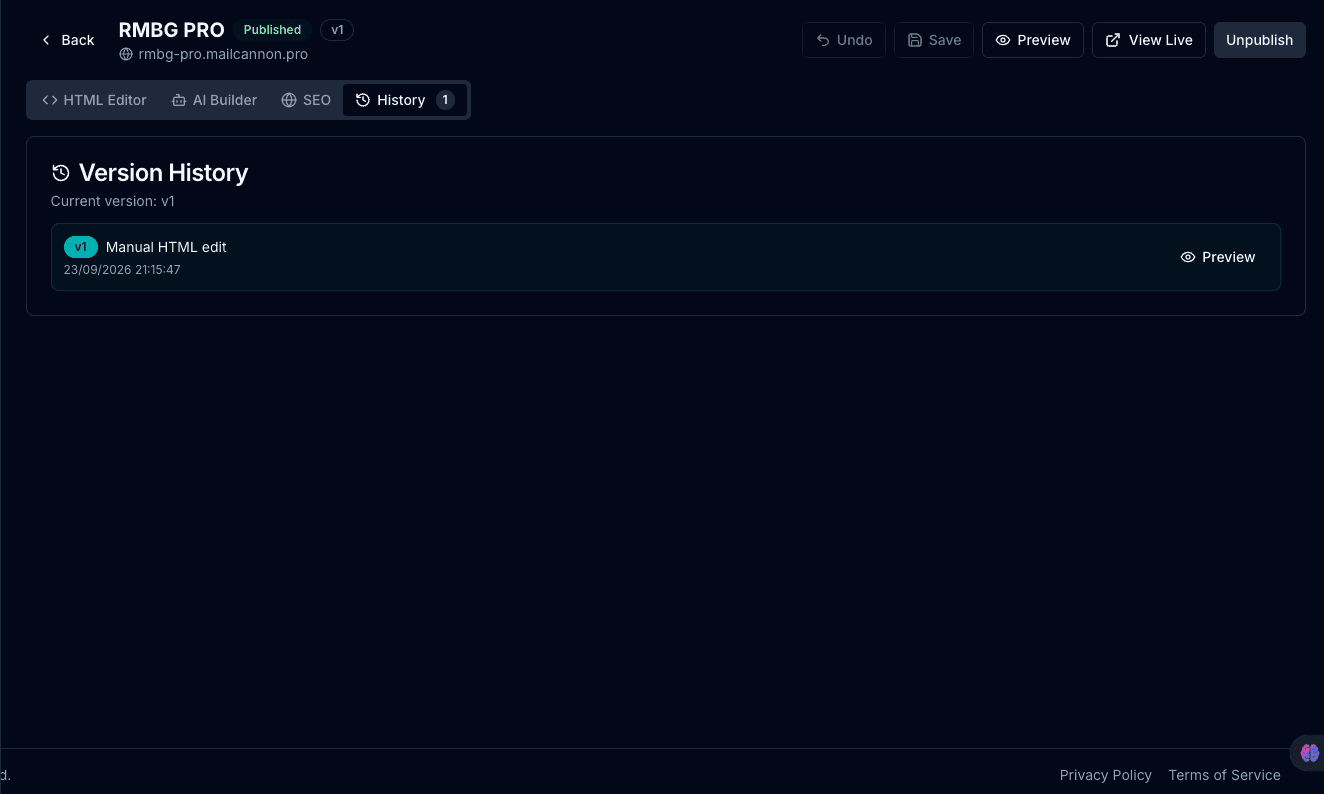
Version history lets you preview and restore previous versions of your landing page
AI Builder vs HTML Editor
Both methods produce the same result: a published landing page on a MailCannon subdomain. The difference is in how you build it.
| Feature | AI Builder | HTML Editor |
|---|---|---|
| Speed | Generates a page in seconds | Depends on your coding speed |
| Technical skill required | None — describe what you want | HTML and CSS knowledge needed |
| Design control | AI chooses layout and styles | Full control over every element |
| Best for | Quick launches, non-technical users | Custom designs, brand matching |
| Iteration | Refine prompt and regenerate | Edit code directly |
| Starting point | Blank prompt | Blank editor or pasted HTML |
| Output | Complete HTML page | Complete HTML page |
Most users start with the AI Builder to get a working page quickly, then switch to the HTML Editor for fine-tuning. This hybrid approach gives you the speed of AI with the precision of manual editing.
Tips for Better Landing Pages
These practices help you get more conversions from your landing pages:
- One page, one goal — do not try to do everything on a single page. Focus on one action you want visitors to take.
- Match the message — if your email mentions a specific offer, the landing page should show that offer immediately, not make visitors search for it.
- Keep the headline clear — visitors should understand what the page is about within two seconds of landing.
- Use a strong call to action — make the button or form obvious. Use action words like "Start Free Trial" or "Download Now".
- Remove distractions — hide navigation menus and unrelated links. The goal is to keep visitors focused on the conversion.
- Make it responsive — most visitors will view your page on a phone. Test on mobile before publishing.
- Add social proof — testimonials, logos, or review counts build trust and reduce hesitation.
- Keep load times fast — compress images, minimize code, and avoid heavy scripts. Slow pages lose visitors.
Frequently Asked Questions
What is MailCannon Landing Pages?
MailCannon Landing Pages is a feature that lets you create a landing page using AI or an HTML editor and publish it on a mailcannon.pro subdomain. You do not need to set up hosting or buy a domain separately.
How do I create a landing page with AI in MailCannon?
Go to /dashboard/landing-pages/new, select the AI Builder option, describe the landing page you want, and the AI generates a complete page using Gemini. You can preview and edit the result before publishing.
Can I use my own HTML for a landing page?
Yes. The HTML Editor lets you write or paste a complete HTML document. You have full control over the markup, styles, and structure of your landing page.
What URL does my landing page get?
Each landing page is published at https://{slug}.mailcannon.pro. The slug is the short identifier you choose when creating the page.
Does MailCannon offer custom domains for landing pages?
No. MailCannon landing pages are hosted on mailcannon.pro subdomains. Custom domains are not supported for landing pages at this time.
Is the AI landing page builder free?
MailCannon provides landing page creation as part of its platform. Check the current pricing page for details on usage limits and plans.
Can I edit a landing page after publishing?
Yes. You can go back to the editor, make changes, and publish an updated version. MailCannon keeps a version history so you can preview and restore previous versions.
What are the best use cases for MailCannon landing pages?
Landing pages work well for product launches, email campaign destinations, service descriptions, lead generation, promotions, SaaS onboarding, events, and portfolio pages.
How do landing pages relate to email marketing?
Landing pages give email campaigns a dedicated destination. Instead of sending subscribers to a homepage, you send them to a focused page with one clear goal, which improves conversion rates.
Does MailCannon support A/B testing for landing pages?
No. MailCannon does not include built-in A/B testing for landing pages. You can manually create different versions and compare performance using external analytics.
Conclusion
MailCannon Landing Pages removes the friction from creating and publishing landing pages. Whether you use the AI Builder for speed or the HTML Editor for control, you get a hosted page on a subdomain with no setup required. Use them to give your email marketing campaigns a focused destination, launch products with a dedicated page, or capture leads with a simple form.
Start by navigating to /dashboard/landing-pages and creating your first page. The AI can have a complete landing ready in seconds, or you can write your own HTML for full design control.
Create Your First Landing Page
Use the AI Builder or HTML Editor to create a landing page and publish it on a MailCannon subdomain in minutes.
Related Articles
What Is Email Marketing? A Beginner's Guide
Learn what email marketing is, how it works, its main types, and how to start your first campaign.
AI HTML Email Generator: How It Works
Turn a written prompt into a responsive HTML email template with AI.
10 Email Marketing Strategies That Really Work
Proven strategies to maximize engagement and conversions in your campaigns.
MailCannon Landing Pages Dashboard
Create, manage, and publish your landing pages from one place.
Advertisement